Job Control
Overview
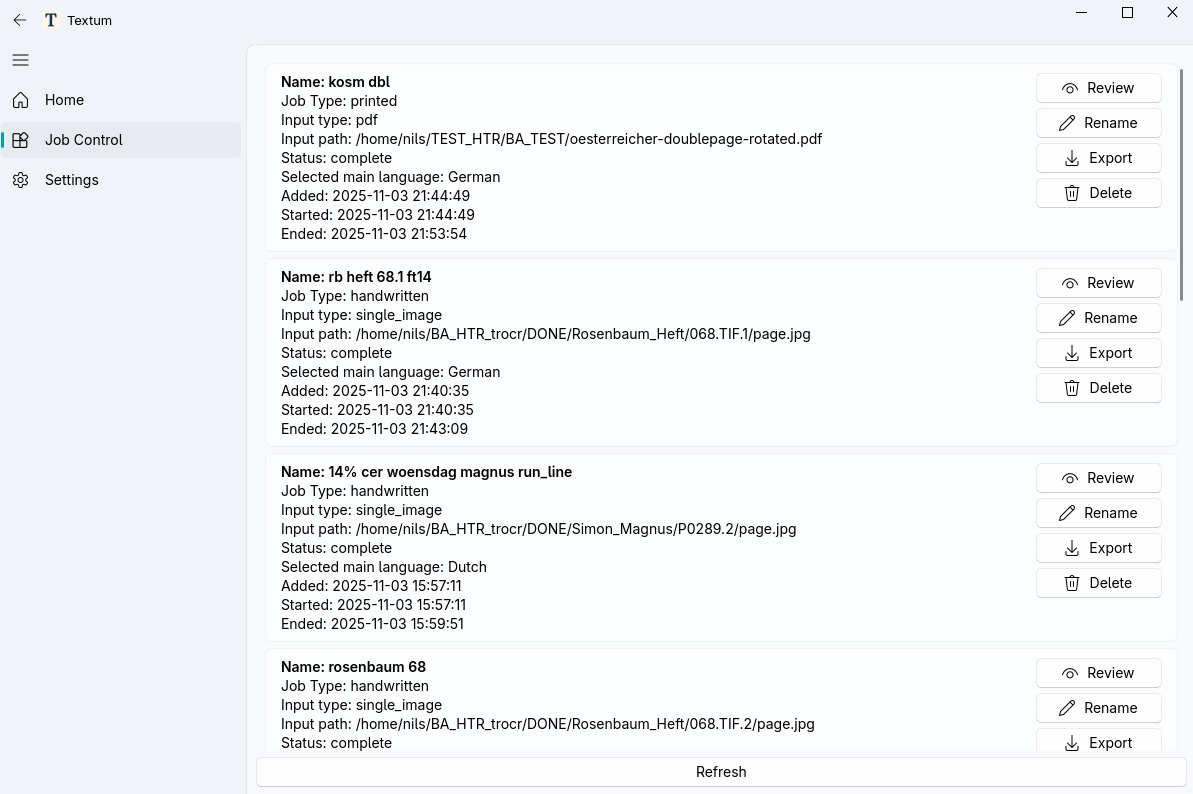
The Job Control view displays all jobs with their current status, allowing you to:
- Monitor job progress
- Start and stop jobs
- Start reviewing completed jobs
- Export results
- Manage the job queue
The jobs are sorted by creation time (newest first). By default, only the 10 newest jobs are shown in the list, you can load more by scrolling until the end of the list and clicking Load More Jobs.
Job Status
Jobs can be in these states:
- Pending - Was not auto-started, has to be started manually
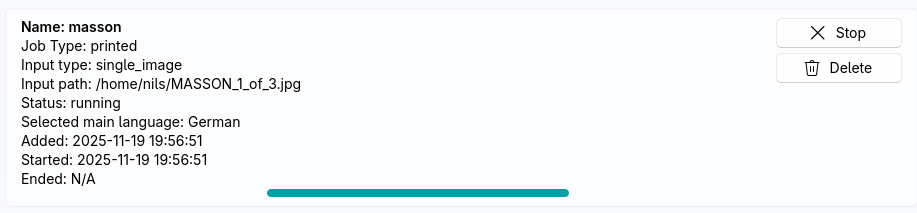
- Running - Currently processing your input files
- Cancelled - Stopped manually by user
- Error - Error occurred during processing (check logs)
- Complete - Finished successfully, ready for review
Starting Jobs
Auto-Start (Default)
If Auto-start Jobs is enabled in Settings (enabled by default):
- Newly created jobs start automatically
- Respects the concurrent job limit
Manual Start
If Auto-start Jobs is disabled:
- Jobs remain in Pending state
- Click the
Startbutton on a job to begin processing - Useful for controlling when processing begins
Concurrent Jobs
The Max Concurrent Jobs setting limits how many jobs run simultaneously:
- Default: 3 jobs
- If limit is reached, new jobs wait in Pending state
- Start them manually when a slot becomes available
- Higher values use more system resources
Job Actions
Start
Manually start a pending job. Only available when:
- Job is in Pending state
Stop
Stop a running job:
- Click
Stopon a running job - Processing halts soon. Because jobs are executed in the background, it is currently not possible to immediately force a job to cancel
- Job state changes to Cancelled
Review
Open the Review Interface for completed jobs:
- Click
Reviewon a complete job - Opens side-by-side review interface
- Make corrections and verify recognized text
Export
Export results directly from Job Control:
- Click
Exporton a complete job - Choose format and destination
- Exports all pages with corrections
Monitoring Progress
While jobs are running:
- Progress indicators show processing state
- Job list refreshes every 10 seconds
Tips
- Monitor resources - Running multiple jobs simultaneously uses more system resources and may slow down your PC
- Check failed jobs - Review application log for error details
▶️ Related
- Creating Jobs - How to create new jobs
- Review Interface - Reviewing and correcting results
- Export Options - Exporting your work
- Settings - Configure auto-start and concurrent jobs